
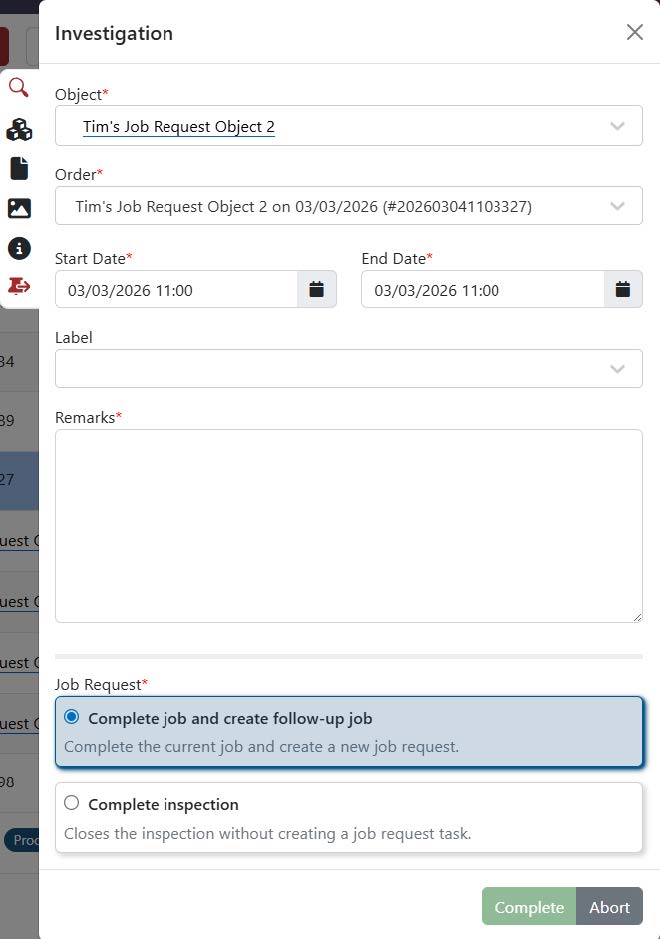
1. New job type: ‘Investigation’
2. Job requests
Job requests enable the persons executing a job to provide feedback to the person who planned the job. There are three different types of job requests:
Block job: The current job is blocked until the planner has written a response and all follow-up jobs have been completed. The current job is therefore no longer displayed in the job list. However, it is made clear that a request has been made by changing the status of the current job to Pending.
Ignore job and create new job request: The current job is not executed, but a job request is created. The current job can still be executed and will therefore continue to be displayed in the joblist. However, it is made clear that a request has been made by changing the status of the current job to Execution with job request.
Complete job and create new job request: The current job is marked as complete and a job request is created. The current job is therefore no longer displayed in the job list. However, it is made clear that a request has been made by changing the status of the current job to Completed with job request.
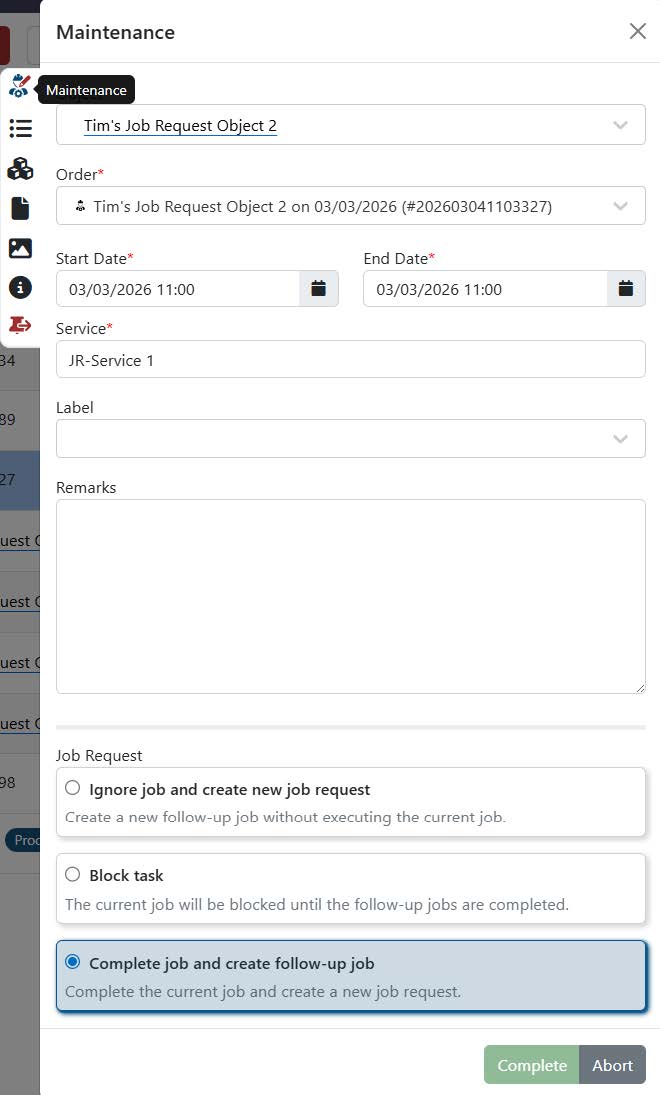
The ability to create job requests has been added to all job types. This allows you to provide feedback on a job at any time and ensure that the right steps are taken to resolve issues or take further action. The new
Investigation job type is an exception. With this job type, the job is always completed, but the people performing it can decide whether or not to create a job request. You can also manage job requests via the newly added Job Requests page or in the assignment window.
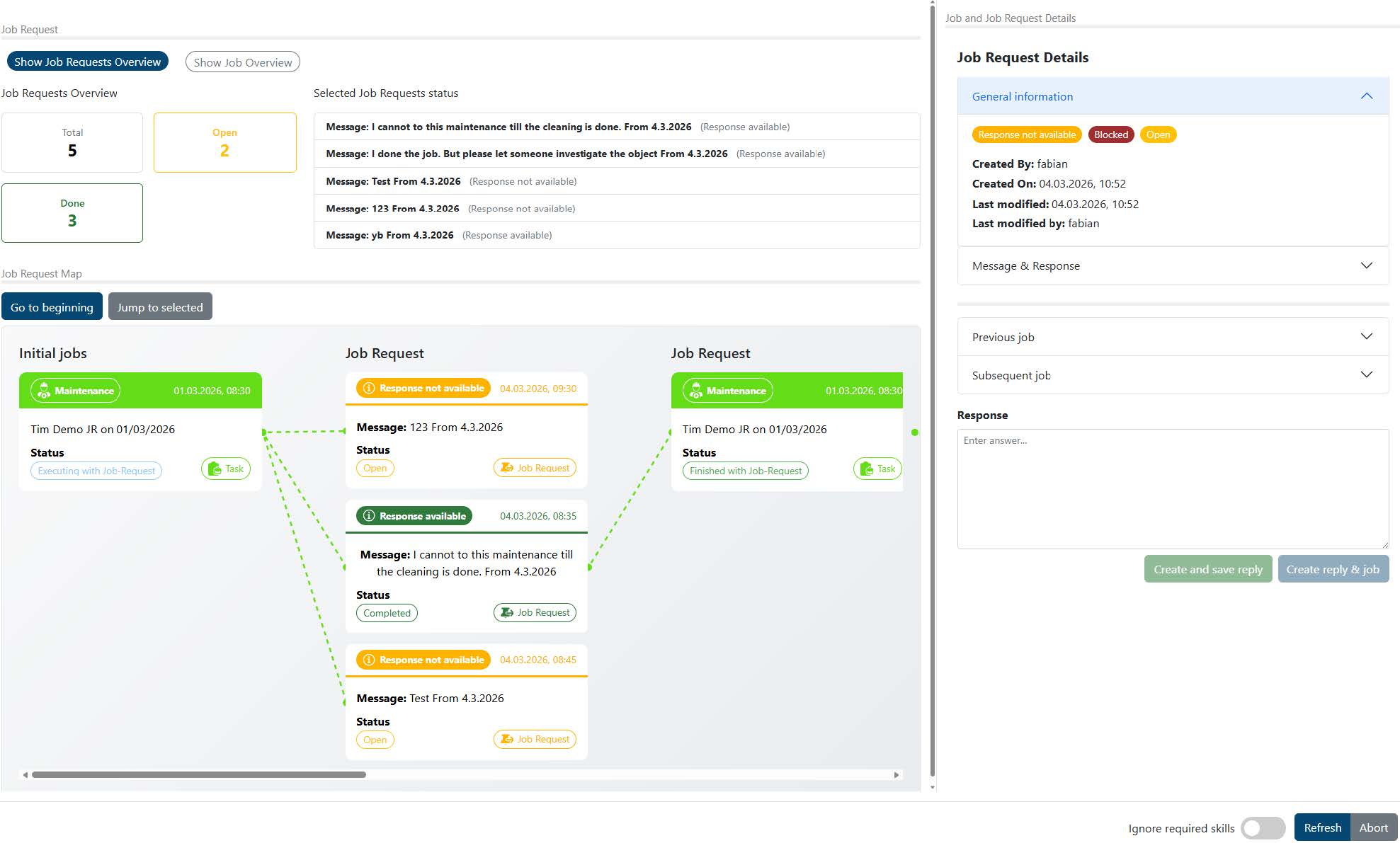
As soon as a job request has been created or answered, the responsible persons are notified by email. This includes the creator of the request and the planner of the assignment.
3. Bulk editing of service parameters
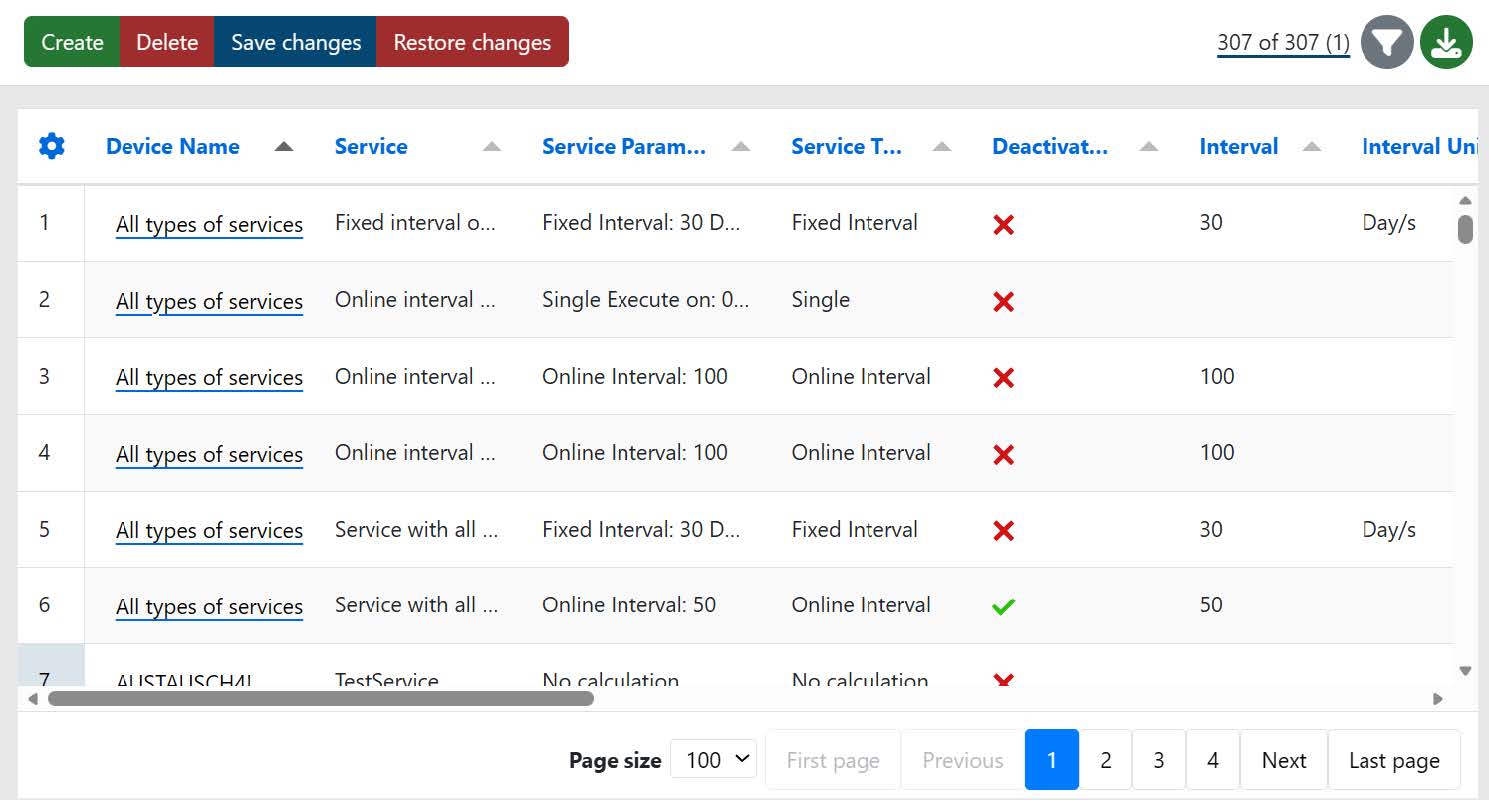
The ability to edit multiple service parameters at once has been added. This feature allows you to make changes to multiple service parameters simultaneously, rather than having to edit them individually. This saves time and increases efficiency when managing service parameters, especially when many parameters need to be updated at once. To edit service parameters, click Edit service parameters on the object monitoring page. You will then be redirected to the corresponding page.
4. Selection fields in running sheets
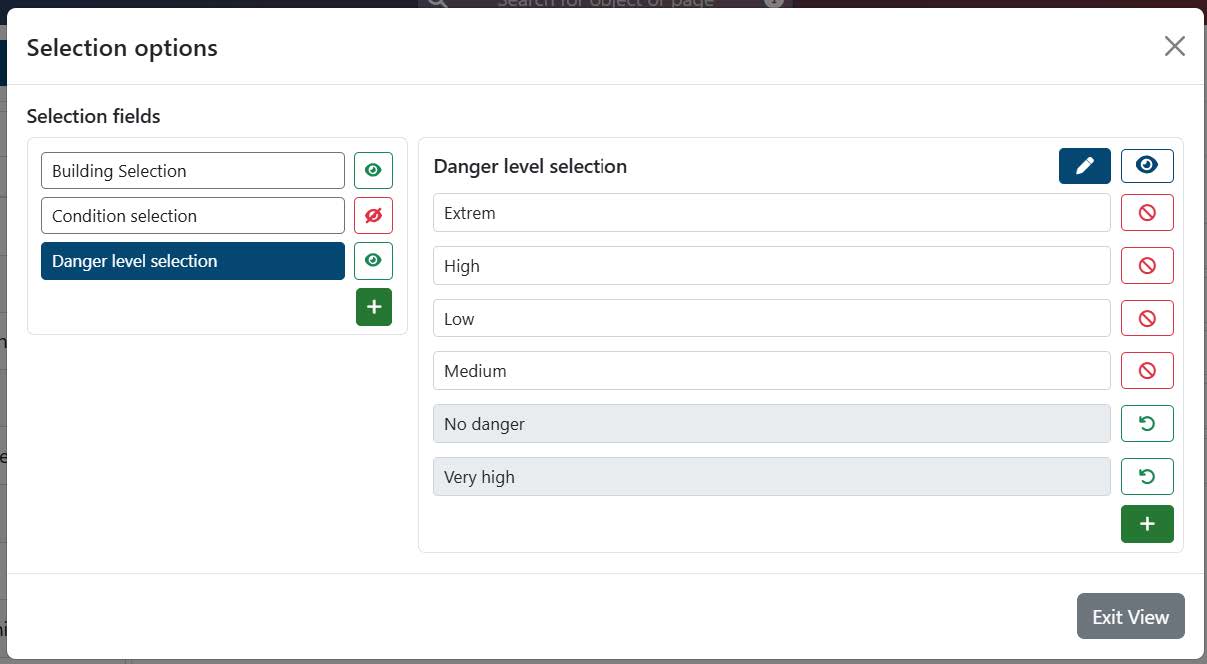
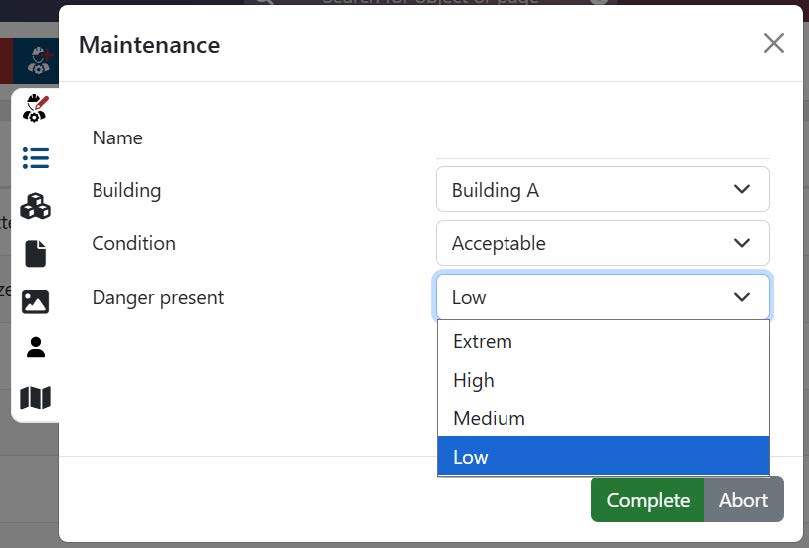
You can now manage and use selection fields in running sheets. Selection fields allow you to values that you can select later when filling out running sheets. This simplifies data entry and ensures that information is recorded consistently and correctly. To manage a selection field,
first add a new field to any form and select the field type Selection. You can then choose the desired selection list or edit the selection lists using the button next to it. Both selection lists and the options they contain can be shown or hidden at any time.
5. Running sheets for malfunctions
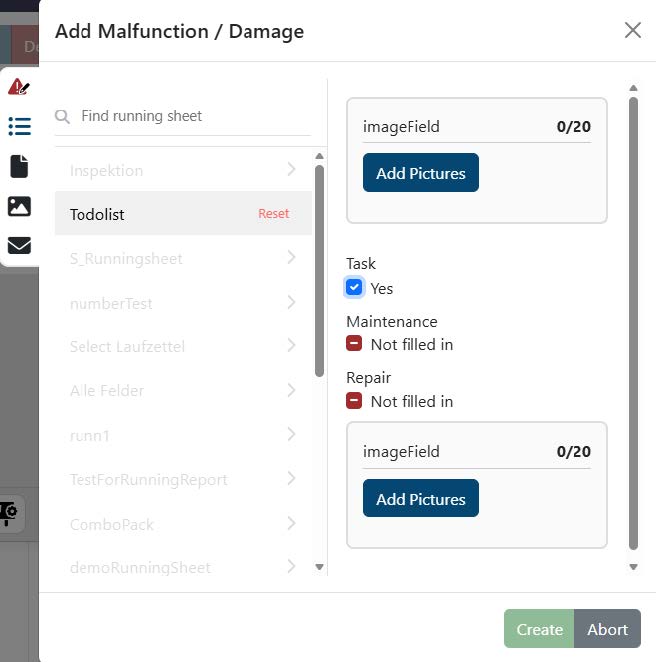
You can now also use running sheets for malfunctions. These allow you to record and document additional information about a malfunctions. Click on the Running sheet tab in the malfunction window and select the desired running sheet. You can then enter the desired information and save it together with the malfunction.
6. Improved addresses and coordinates for jobs
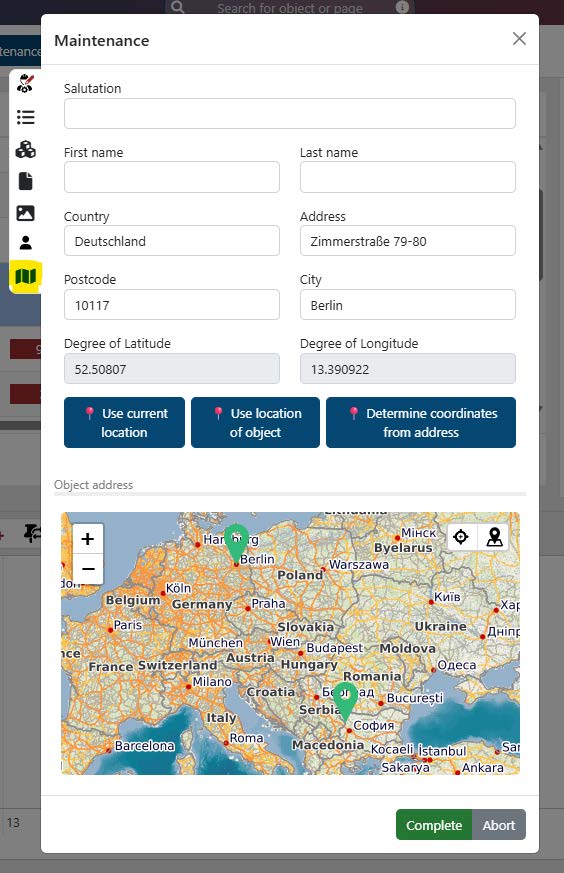
You can now add coordinates when planning jobs. Buttons have also been added to simplify this step. You can copy the coordinates from the linked object. The address is also loaded automatically.Alternatively, you can enter the address manually and load the coordinates using the Determine coordinates from address button. This feature makes it easier to plan jobs, especially if they need to be carried out at specific locations, and ensures that the correct addresses and coordinates are used. Last but not least, you can also load the coordinates and address of your current location by clicking on the Use current location button. This function is particularly useful if you have just completed jobs at your current location.
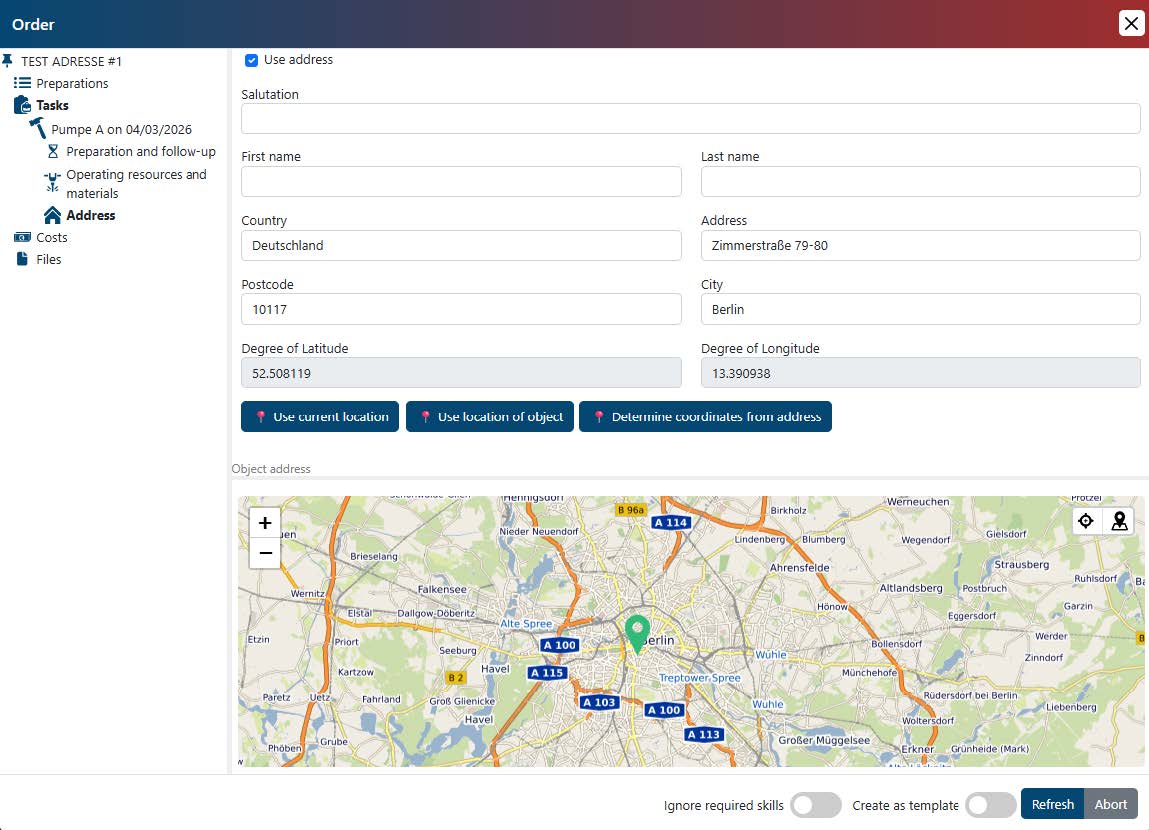
Furthermore, you can now also add addresses and coordinates when performing quick maintenance and quick repairs. This is particularly helpful if the underlying object cannot be assigned to a fixed address or coordinates.
7. Project officers are now used as emergency contacts
If a user triggers an emergency alert by failing to reset the emergency timer in time, the project officers responsible for the project are notified. This change ensures that the appropriate persons are notified when an emergency occurs and enables project officers to respond quickly to the situation and take appropriate action.
8. Improved display of warnings for assignments
A new, unified notification component to clearly inform users about preparations, contractors, skills,and tools that may block or affect one or multiple assignment executions has been introduced.
The new design focuses on better readability, structure, and consistency while executing assignments. All assignments related notifications now share a consistent look and behavior with a warning banner and icon and highlighted title text. Consistent spacing, section separators, and typography is maintained across all modals.
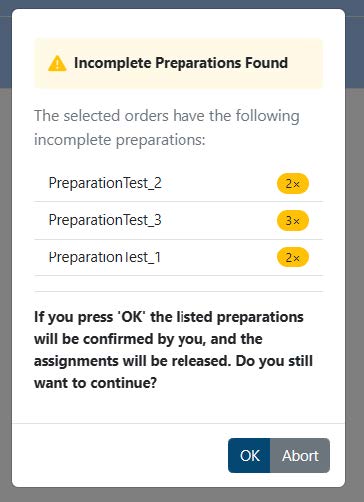
Preparation confirmation notification modal:
- Groups identical preparation entries.
- Displays a consolidated list of preparation texts.
- A count badge (n×) per preparation indicating how many times it appears across the selected orders.
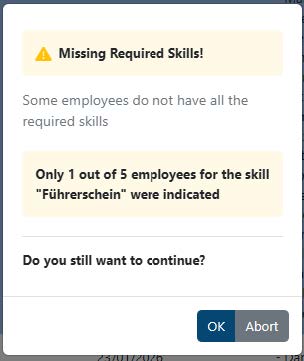
The Missing Required Skills notification presents:
- Missing skills grouped by employee
- Clear indication of rule violations. (for example, minimum required skill counts)
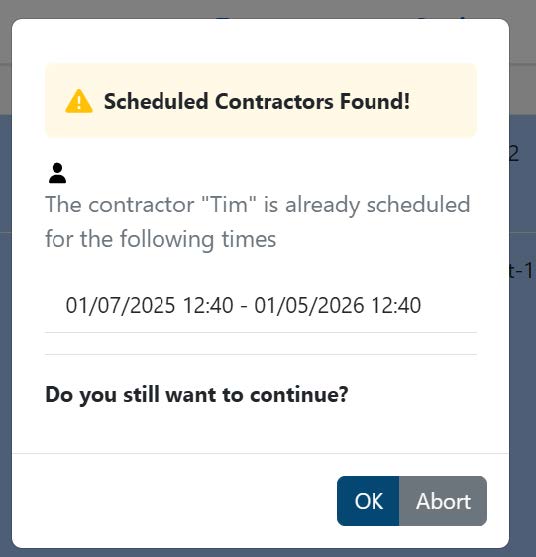
The Scheduled Contractors Found notification:
- Groups conflicts by contractor and their scheduled time.
9. Bug fixes / improvements
- Fixed bug when sending emergency alert emails
- Fixed bug where changes to jobs were not saved once materials had been adjusted
- Fixed bug where changes to addresses of jobs were not saved
- Fixed bug when saving changed materials for maintenance, repairs or replacements
- Fixed bug where the maintenance window was not closed after successful saving
- Fixed incorrect notification of missing permissions on the object monitoring page
- Fixed bug when saving an assignment with the status “Registration”
- Fixed bug when validating the “Installed on” attribute on the service overview page
- Fixed an error where the “Name” field of the object type could not be edited
- Fixed an error when selecting the correct assignment status
- Fixed an error when reopening the assignment window after displaying a warning
- Fixed an error when performing reactions triggered by running sheet fields
- Fixed an error when deleted orders in the information tab of the linked assignment in the job modals should be displayed
- Fixed an error setting the job type when creating an order